Guide · 4 min
Plan your print queue and see what prints cost
Line up what is printing next on each machine and keep an honest record of what every print cost.
- 01
Add jobs to the queue
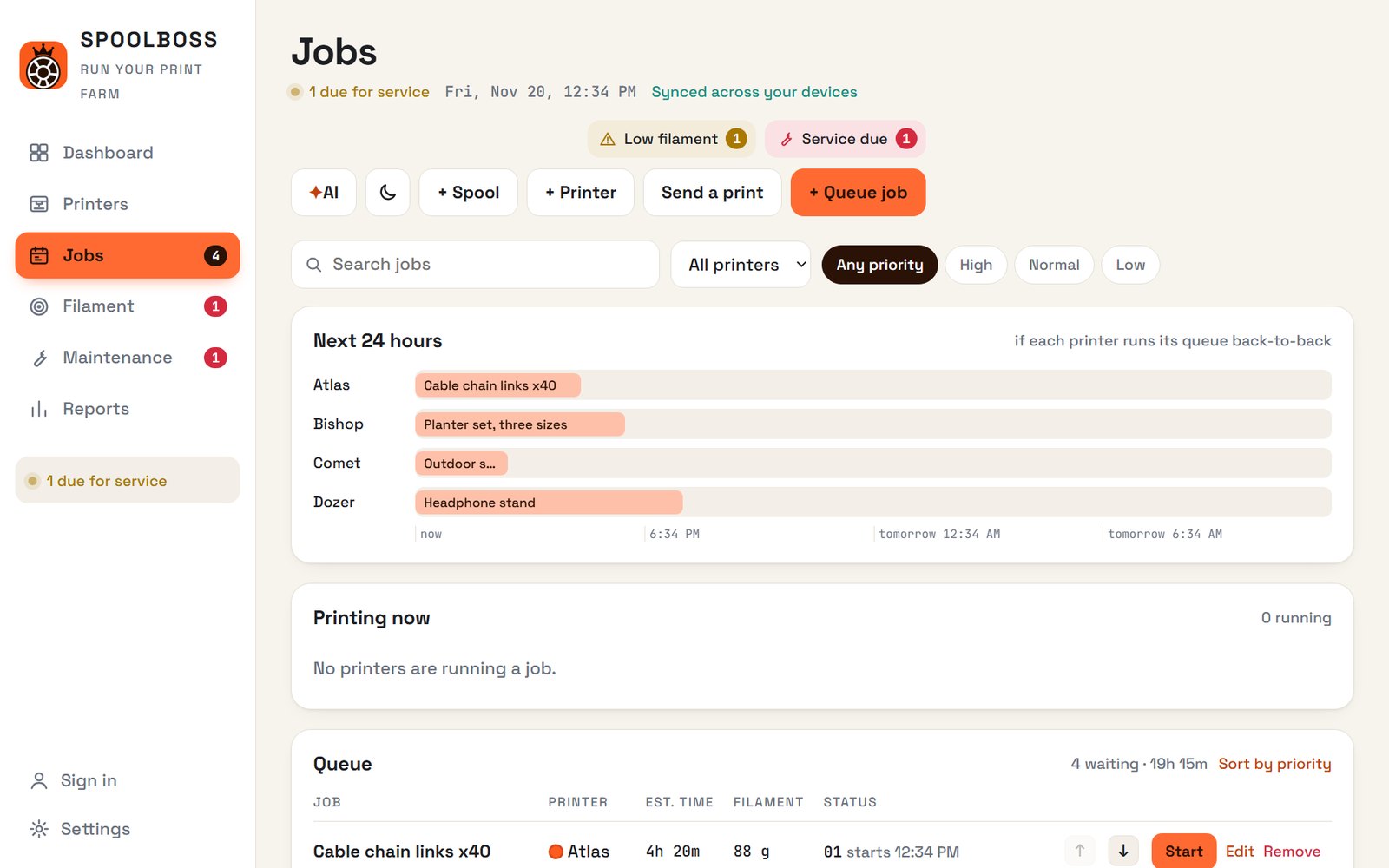
Open Jobs and press + Queue job. Give it a name, choose the printer, and enter the hours and grams from your slicer.
- 02
Follow the timeline
The Next 24 hours chart shows when each printer will be busy if its queue runs back to back, so you can spot an idle machine.
- 03
Finish a job
When a print is done, mark it finished (or failed). The filament is taken off the spool and the cost is recorded. Printers that report live status log finished prints by themselves.
- 04
Read the reports
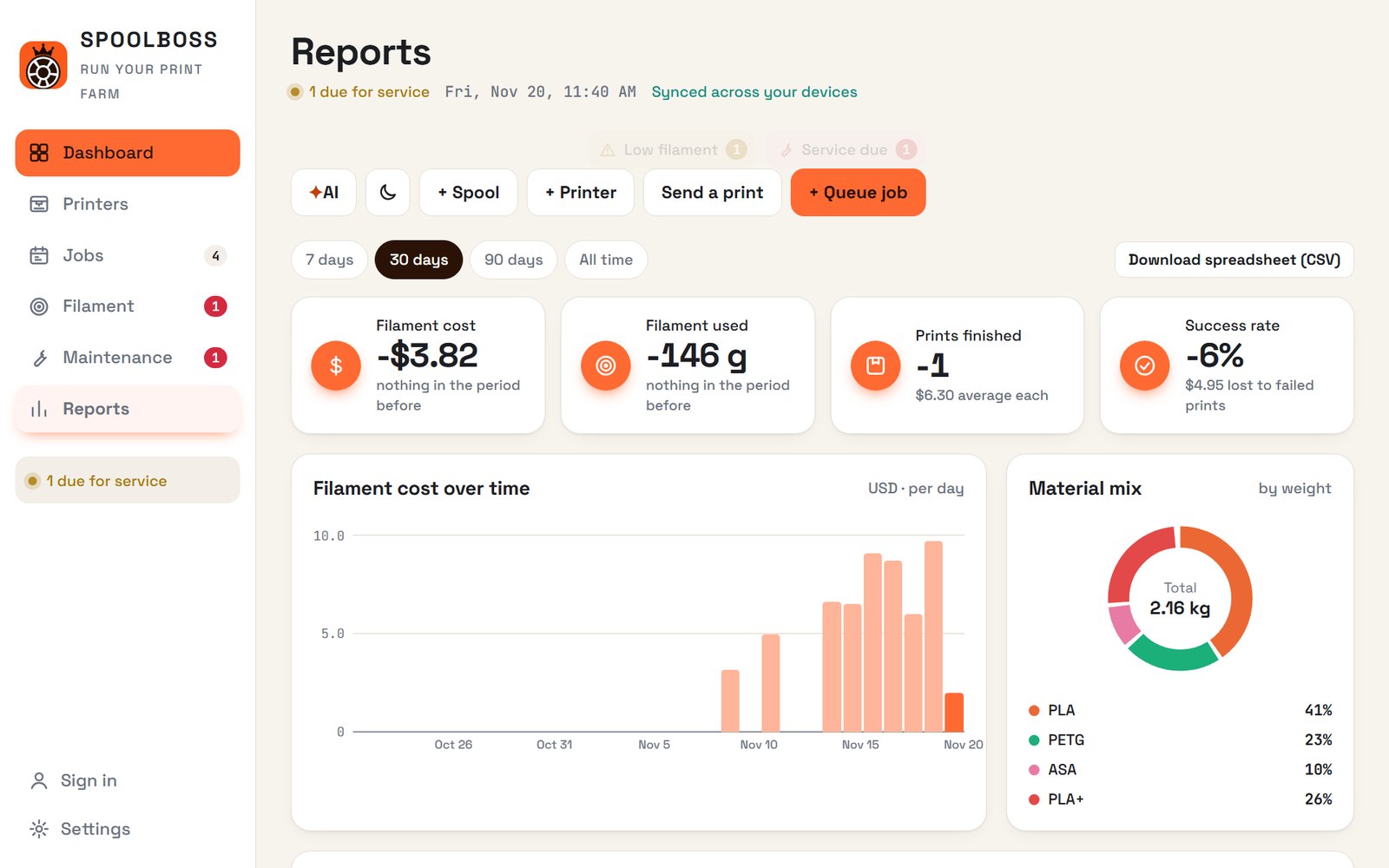
Reports shows filament cost over time, material mix, success rate and a month-by-month table for each printer. You can download it as a spreadsheet.
Next guide: Send a print to a printer from SpoolBoss