Guide · 5 min
See your printers live with the SpoolBoss Connector
A small free program on a Windows computer finds your printers and keeps the app up to date with what each one is doing.
- 01
Download the Connector
In the app open Settings → Find my printers and choose Download for Windows. Windows may say it protected your PC because the program is new: choose More info, then Run anyway.
- 02
Sign in to it
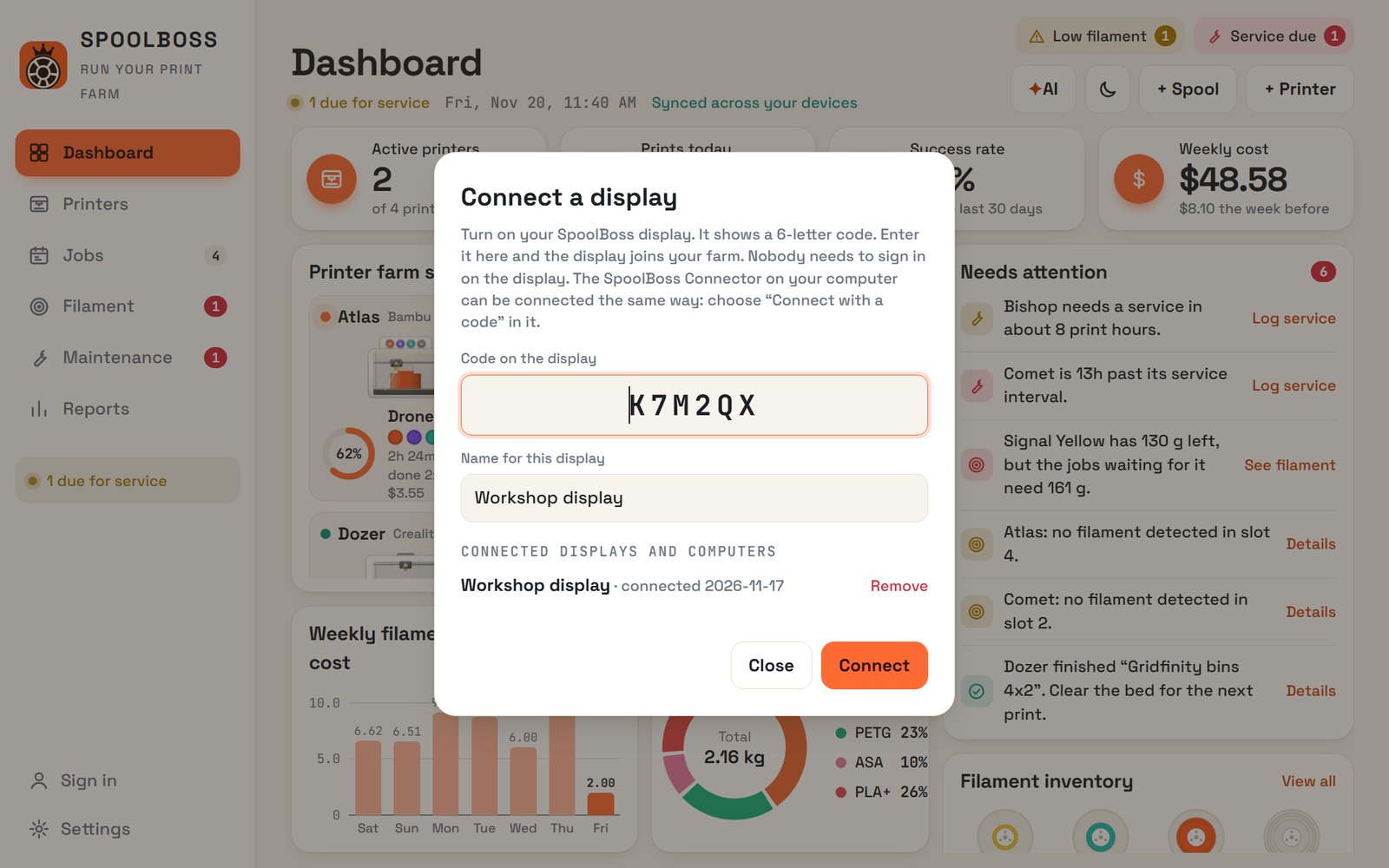
Sign in with your SpoolBoss email and password. If you use Google sign-in, choose Connect with a code instead: the Connector shows a short code, and you enter it in the app under Settings → Connect a display.
- 03
Find your printers
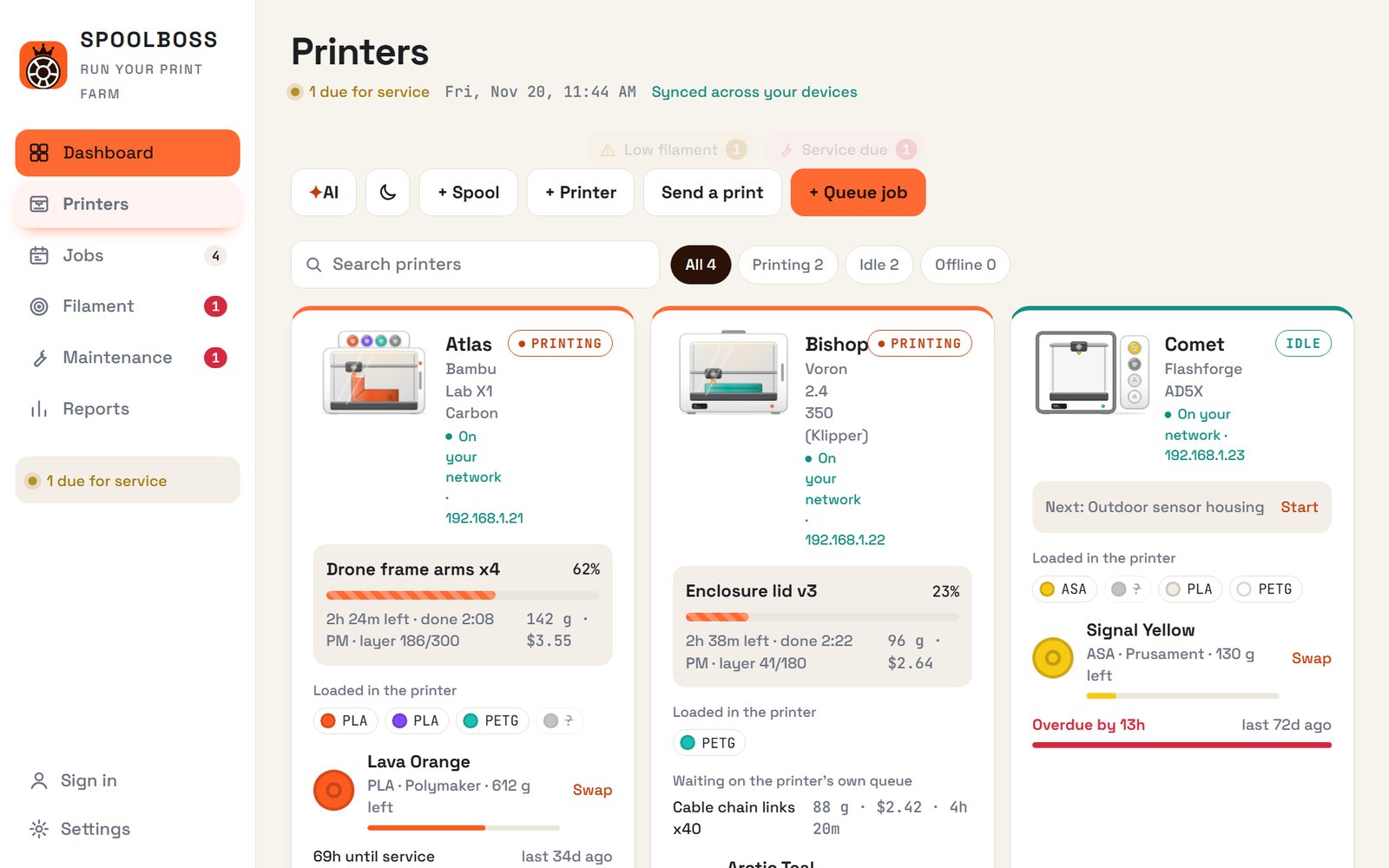
Click Find my printers. Printers on the same network are added to your farm and appear in the app within a few seconds.
- 04
Leave it open
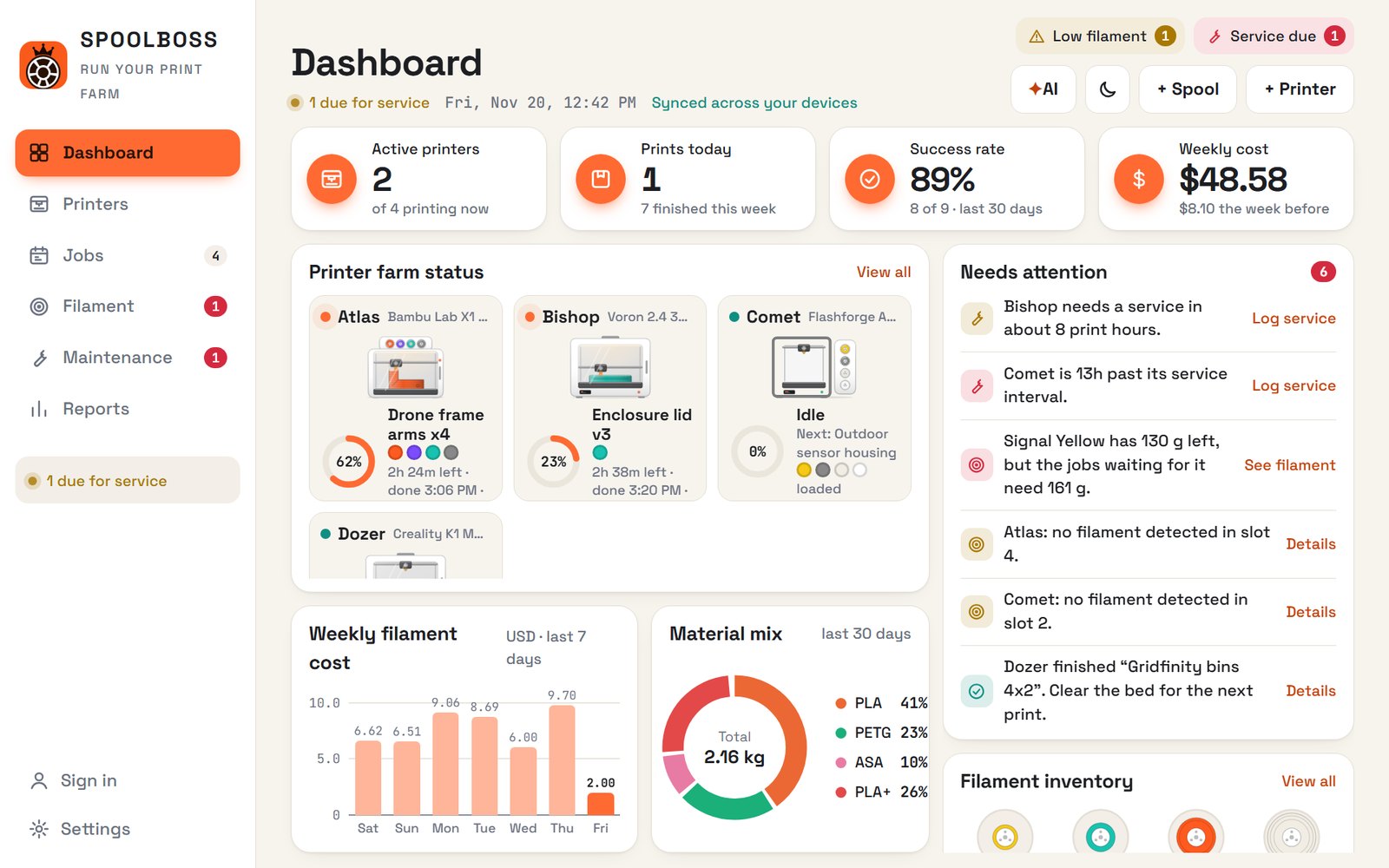
Keep the Connector open (minimised is fine) and tick Start with Windows. Every minute it sends what each printer is doing: status, progress, time left and loaded filament.
- 05
Unlock Bambu Lab and FlashForge printers
These only share details with someone who knows a code from the printer's own screen. In the Connector, click Enter printer code under the printer. For Bambu Lab the access code is under Settings → WLAN on the printer. For FlashForge, switch on LAN mode under Settings → Network; note that this turns off FlashForge's own cloud app for that printer.
Next guide: Connect a wall display